MentorNeko marks the milestones of your mentorship with achievements. You earn them automatically as you go, if your organization has achievements switched on.
Where to See Them
Your achievements are on the Profile tab of your dashboard, under Achievements. Hover over one to see what it was for. If you have earned the same one in more than one match, it shows a count, such as "First Session x2".
Only achievements you have earned are shown. There is no separate notification or email when you earn one.
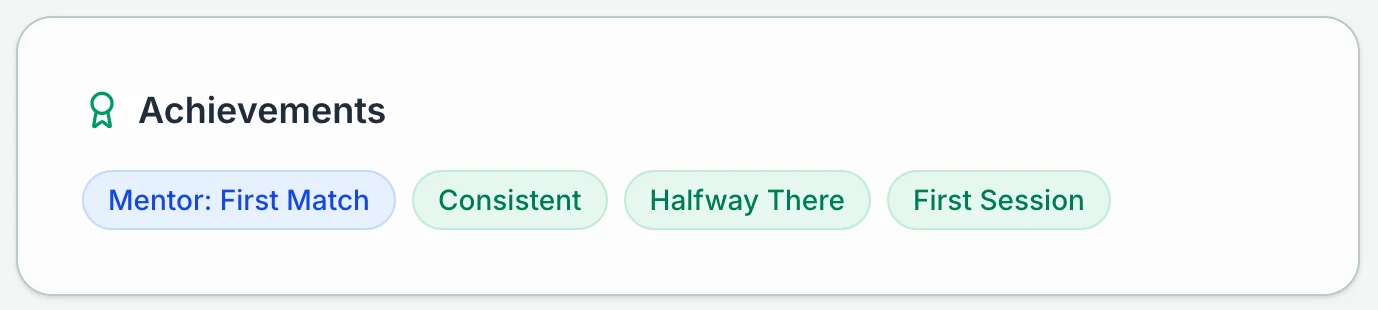
Achievements in a 1:1 Match
These are earned once per match:
| Achievement | How you earn it | |---|---| | First Session | Your first session with your partner is marked complete. | | Goal Setter | You create your first goal in the match. | | Goal Achieved | A goal is marked Achieved. Only the mentee can change a goal's status, so this one goes to the mentee. | | Halfway There | Half of the program's sessions are complete (session 3 of 6, or 4 of 8). | | Program Complete | Every session in the program is complete. | | Consistent | You give feedback on four sessions in a row. |
Because completing a session completes it for both of you, you and your partner usually earn the session achievements together.
Mentor Milestones
Mentors also earn milestones for the number of matches they have seen through to completion, across all programs in your organization:
- Mentor: First Match: your first completed match as a mentor
- Mentor: 3 Matches: three completed matches
- Mentor: 5 Matches: five completed matches
A match counts once it is fully Completed, after the exit surveys (see When a Match Ends). Matches that end early do not count.
Mentoring circles have their own achievements (Circle Complete and three facilitator milestones), covered in Participating in a Circle.
Your Completion Certificate
When a match is complete, you each get a completion certificate. It shows your name and your partner's, the program, when the match started and finished, the number of sessions completed, and your organization's name and logo.
You also get an email with a link to it. After that, find it under Past partnerships on the Match tab of your dashboard: click View certificate.
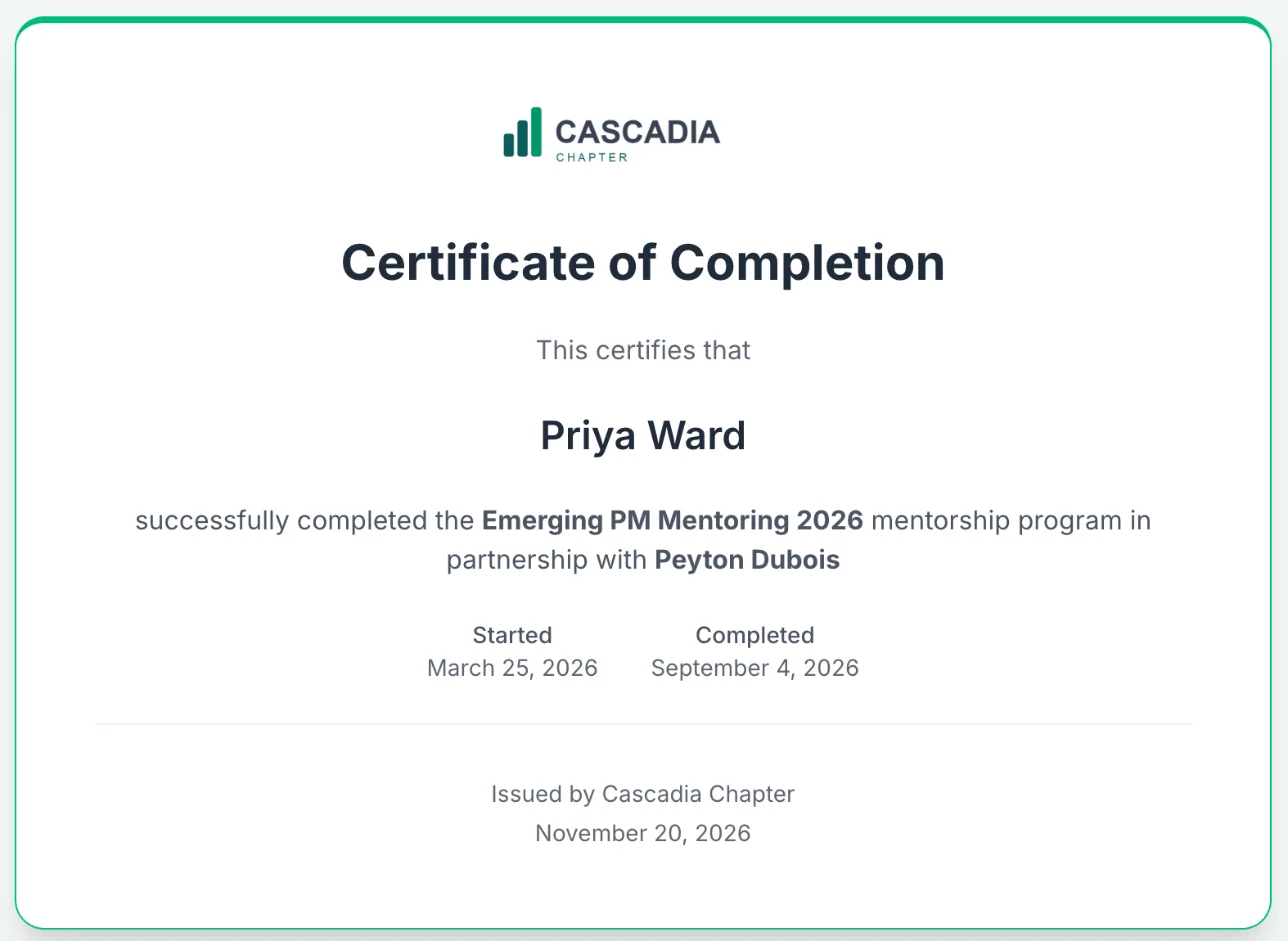
To save it as a PDF, use your browser's print option (Ctrl+P on Windows, Cmd+P on a Mac) and choose Save as PDF.